Remote control for Copilot CLI sessions now generally available on mobile, web, and VS Code
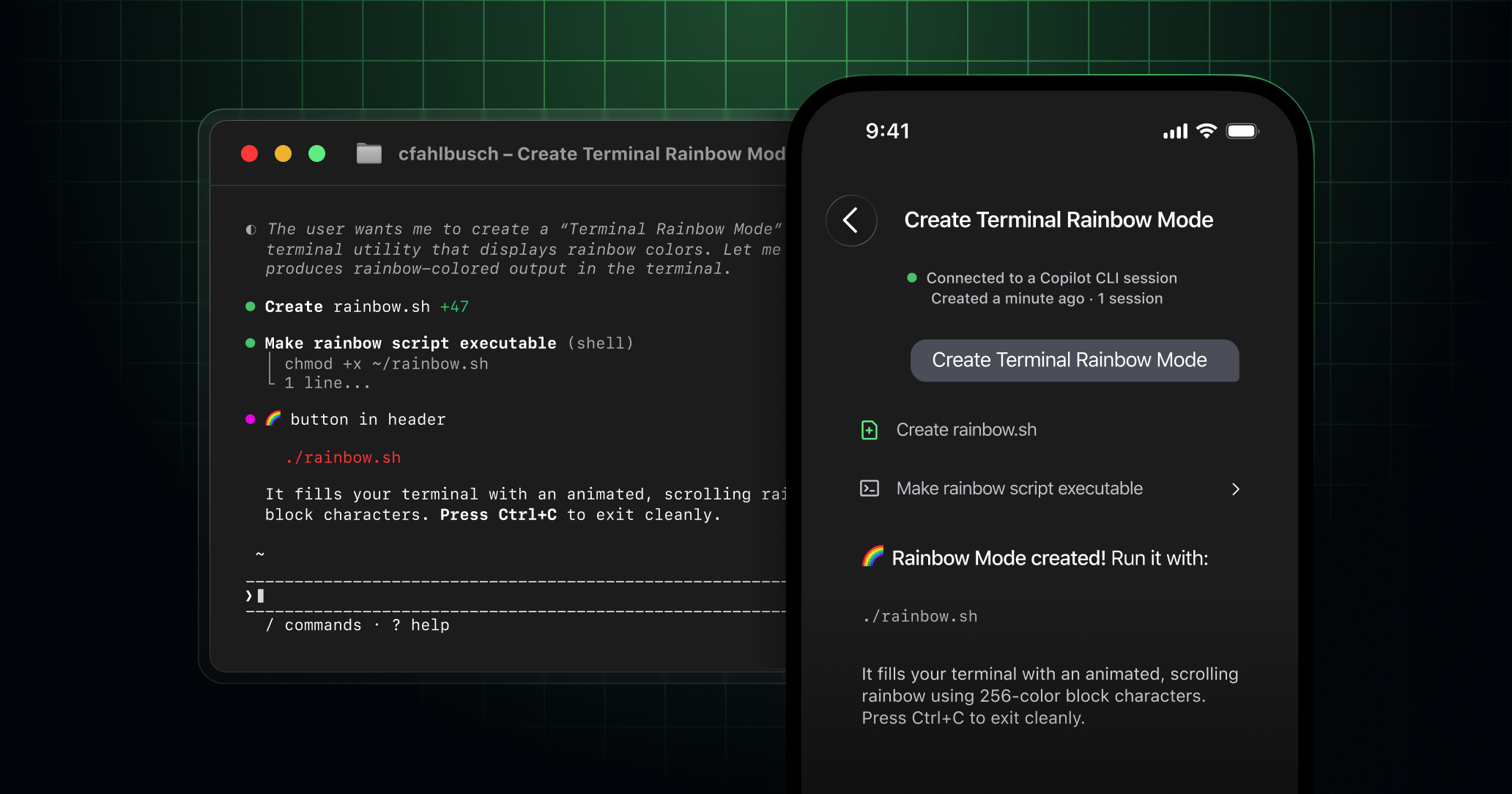
Remote control for Copilot CLI sessions is now generally available on GitHub Mobile and github.com, so you can start work in your terminal and keep it moving from anywhere.
With this release, remote control now supports non-GitHub repositories and directories not associated with a repository.
We’re also introducing remote control in VS Code and JetBrains, making GitHub Copilot truly multi-surface and available across any device.
When remote control is enabled, Copilot streams your CLI session activity in real time, so you can view and steer your sessions on the go. Simply kick off a Copilot CLI session in the terminal, VS Code, or JetBrains, then monitor or steer it from the GitHub Mobile app or github.com.
Built for staying productive from your phone
- Track session progress live while you’re away from your desk.
- Steer midsession, or queue the next message as soon as the current step finishes.
- Review and tweak plans before Copilot starts implementing.
- Stop a session at any time.
- Approve or deny permission requests based on your settings.
- Respond to Copilot’s questions when it needs input, regardless of where you are.
Tips for starting from Copilot CLI
- Run
/updateto make sure you’re on the latest version of Copilot CLI. - Start a remote session with
copilot --remote, or enable it midsession with/remote on. - Scan the QR code or open the link in the GitHub Mobile app or on github.com.
- For longer runs, use
/keep-aliveto help keep your machine awake. - View your sessions in the Agents tab in the repository.
Note: If you’re working with non-GitHub repositories or directories not associated with a repository, they will appear on github.com/copilot/agents.
Tips for starting from VS Code
- Download the latest version of VS Code.
- Enable the
github.copilot.chat.cli.remote.enabledsetting. - Start or resume a Copilot CLI session from the Chat view.
- Enter
/remote onin the chat input to enable remote control and create the linked GitHub task page. - Select Open on GitHub to open the linked task page.
Note: If you’re a Copilot Business or Copilot Enterprise user, an administrator will have to enable remote control and CLI policies before you can use it.
Download or update GitHub Mobile today from the Apple App Store or Google Play Store to get started.
Learn more about how remote control works for Copilot CLI, VS Code and JetBrains sessions.
Join the conversation in the GitHub Community discussion.