Remote control CLI sessions on web and mobile in public preview
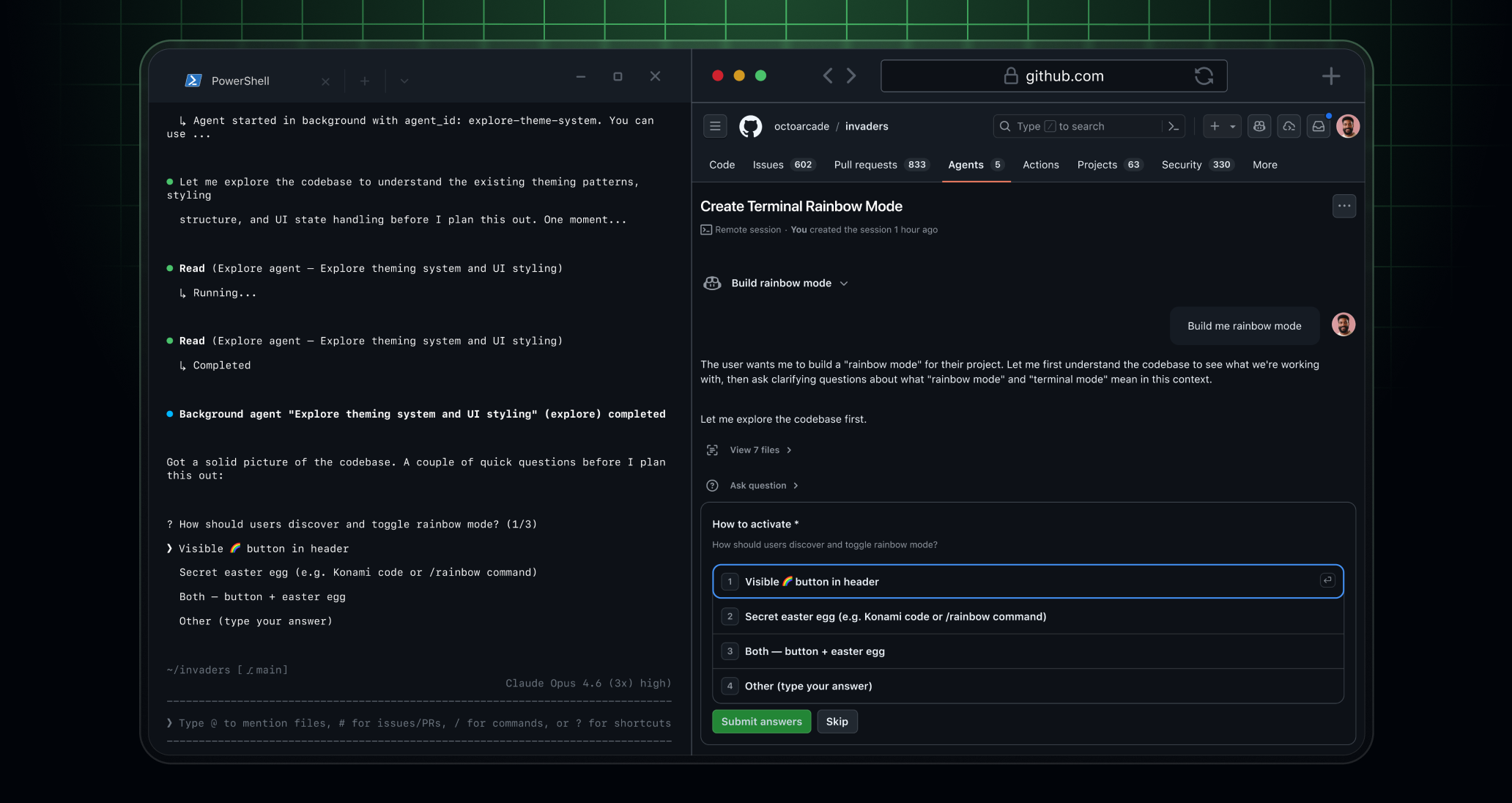
The Copilot CLI is no longer a purely local experience. Today we’re launching copilot --remote: With remote capabilities, you can now monitor and steer a running CLI session directly from GitHub on the web or in the GitHub Mobile apps.
When remote sessions are enabled, Copilot streams your CLI session activity to GitHub in real time. The CLI will display a link and a QR code that you can open from another device to view, monitor, and send follow up commands to that session. Activity stays in sync across the CLI and GitHub, so actions you take in one place are reflected in the other. Each remote session is private and visible only to the user who started it.
Remote sessions support all of the features you expect from the Copilot CLI:
- Send mid-session steering messages, and new messages to keep the agent going once the current turn completes
- Review and modify plans before beginning implementation
- Switch between plan, interactive, and autopilot mode, or stop your session entirely
- Approve or deny permissions requests based on your existing CLI settings
- Respond to questions from copilot prompted via the
ask_usertool
Tips for getting started
- Run
/updateto use the latest version of Copilot CLI. - Start a new remote session with
copilot --remote, or enable it in an existing session with/remote. - Make sure your working directory is a GitHub repository.
- Open the session link to follow along and interact from the web.
- For longer tasks, use
/keep-aliveto help keep your machine awake while the CLI is running. - To get started on mobile, try it out the beta release on Google Play or iOS TestFlight.
Note: If you’re a Copilot Business or Copilot Enterprise user, an administrator will have to enable remote control and CLI policies before you can use it.
Learn more by checking out the Copilot CLI documentation. Join the discussion within GitHub Community to let us know your favorite location to take your projects on the go.