GitHub Copilot assisted permissions generally available
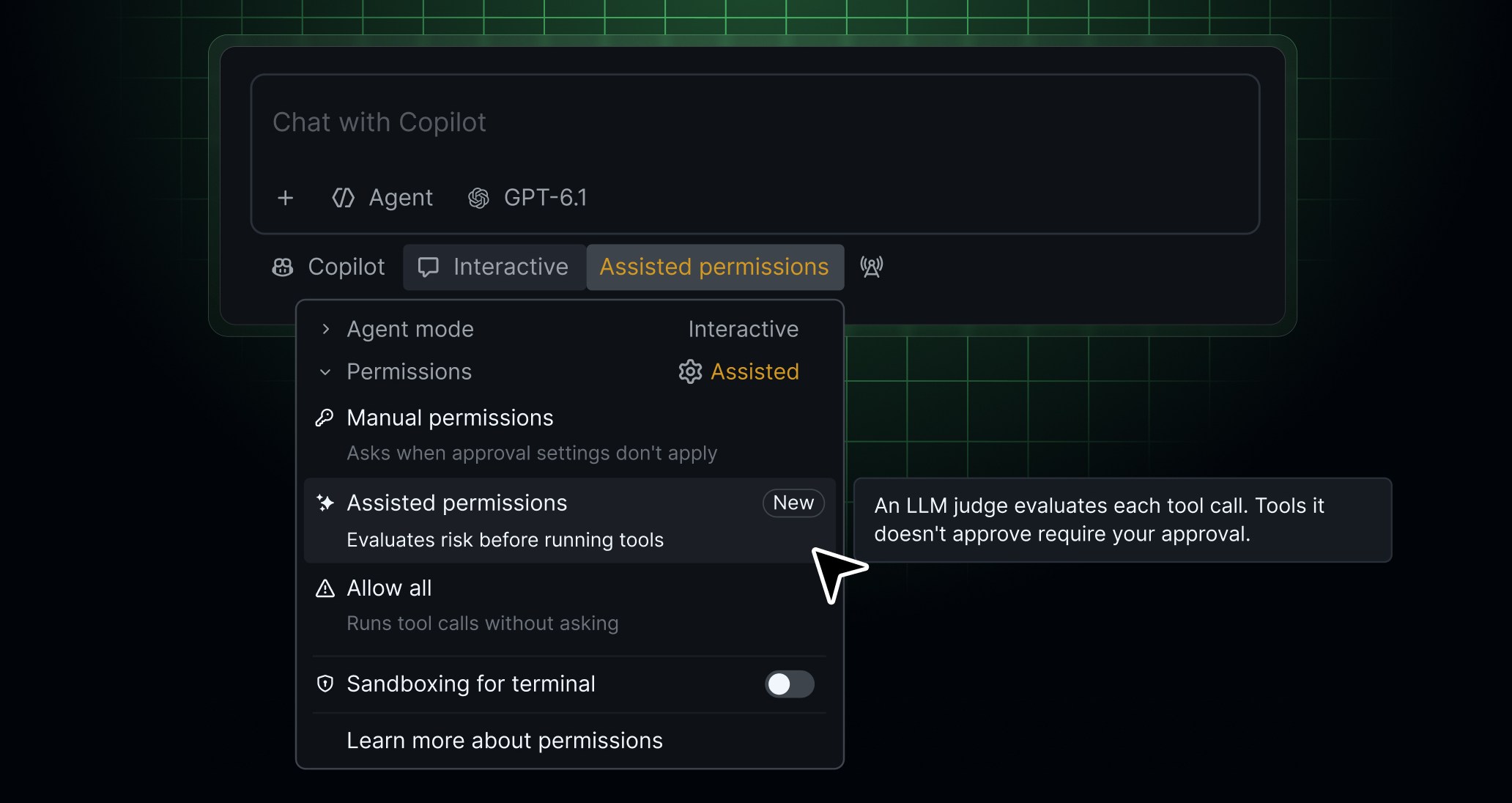
Assisted permissions are now generally available in GitHub Copilot CLI, GitHub Copilot app, and Visual Studio Code.
When Copilot requests permission to run a command, access a file system path, or open a URL, a large language model evaluates the request. Requests classified as clearly safe automatically proceed. Other requests require your approval.
GitHub Copilot CLI
Run /permissions, then select assisted.
GitHub Copilot app
Open the mode picker, click Tool permissions, then select Assisted.
Visual Studio Code
Open the permissions picker, then select Assisted permissions.
Enterprise controls
If you’re an enterprise administrator, you can use enterprise-managed settings to block Allow All while keeping Assisted available or disable Assisted separately.
You can also choose the default permission mode for new sessions. Developers can still select another mode permitted by policy. If the default is unavailable or prohibited by policy, the session starts with manual approval.
For details about how assisted permissions evaluate requests and when approval is required, see Allowing safe commands to run without manual approval.