Claude and Codex are now available in public preview on GitHub
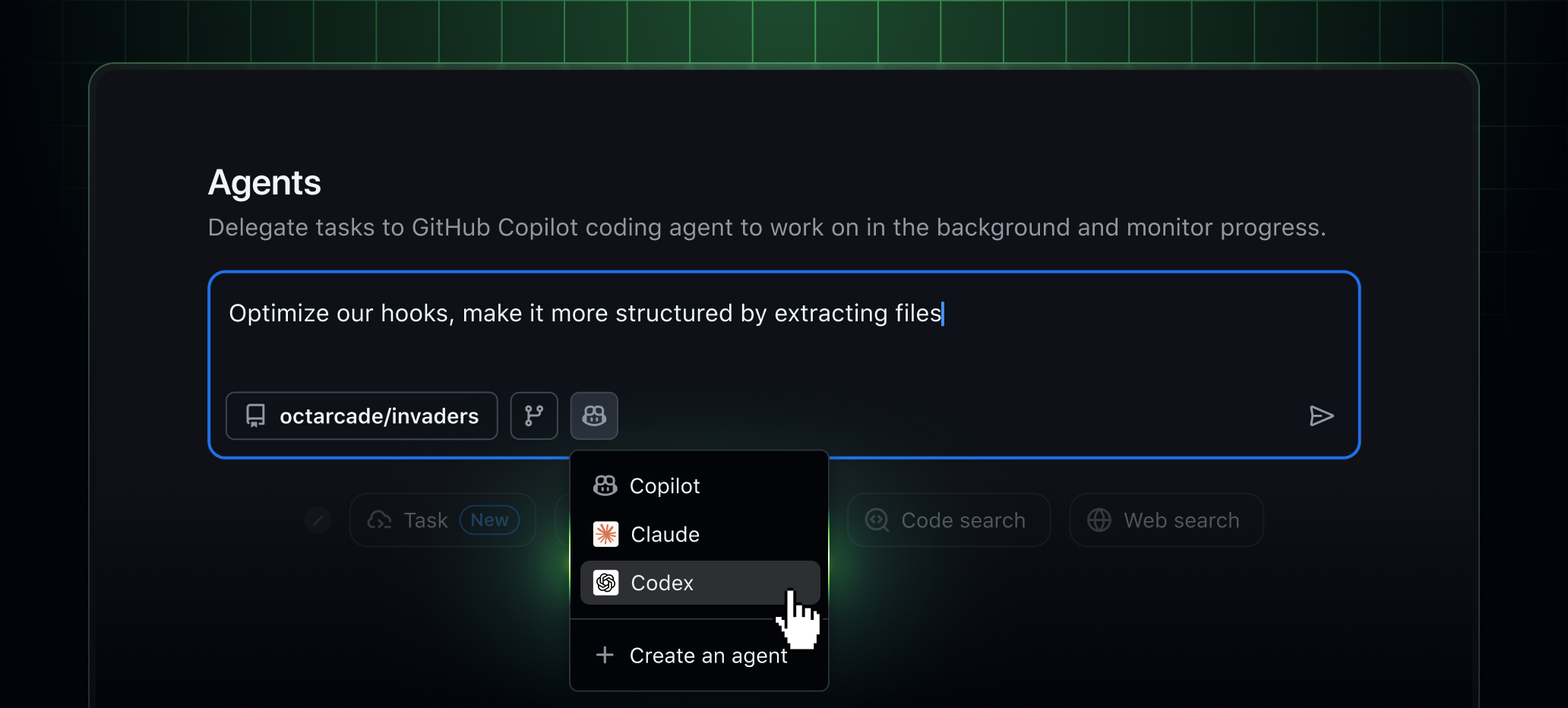
Claude and Codex coding agents are now in public preview
Claude by Anthropic and OpenAI Codex are now available as coding agents for Copilot Pro+ and Copilot Enterprise customers.
You can start agent sessions and assign work to these agents from github.com, GitHub Mobile, and VS Code. You can do this directly from issues, pull requests, the Agents tab in enabled repositories, and the agent sessions view in VS Code for a seamless cross-client experience.
No additional subscriptions are required. Access to Claude and Codex is included with your existing Copilot subscription. Each coding agent session consumes one premium request during public preview.
How to enable Claude and Codex
For Copilot Pro+ subscribers
- Go to your Copilot coding agent settings.
- Choose which repositories agents are allowed to access.
- Enable “Claude”, “Codex”, or both by toggling them On.
For Copilot Enterprise subscribers
The following settings must be enabled by your enterprise admin:
- Enable agents at the enterprise level:
- Navigate to “Enterprise AI Controls”.
- Open the Agents tab.
- In “Partner Agents”, enable “Claude”, “Codex”, or both.
- Enable agents at the organization level:
- Go to the organization’s Settings.
- Select the Copilot tab.
- Open Coding agent.
- In “Partner Agents”, enable “Claude”, “Codex”, or both.
How to use agents
Create and view sessions from the Agents tab on GitHub (web and mobile app)
You can create new agent sessions on GitHub.com and the GitHub Mobile app in a few different ways:
- On GitHub.com, go to the Agents tab in any repository where agents are enabled, or initiate a task using the agents dropdown in the main header.
- On the GitHub Mobile app, open the Agents view from Home or a repository, or tap the + button from Home, Repository, or other views.
Whichever entry point you use, type your request, select the agent you want to work with by clicking the Copilot icon in the input field, and submit. The agent will begin work shortly. You can follow progress in real time or review completed sessions from the session list on both web and mobile.
Assign agents to issues
Assign an issue to Claude, Codex, Copilot, or all three using the Assignees dropdown. The selected agent or agents will automatically begin work and submit a draft pull request for you to review.
Work with agents in pull requests
- Agents can generate draft pull requests for assigned tasks (unless you choose not to), follow up on feedback, and continue iterating until the work is complete.
- You can also assign an open pull request to any agent using the Assignees dropdown.
- Leave review comments or request changes by using @copilot, @claude, or @codex.
- Use the View session button to see a full overview and detailed activity logs.
Start agent sessions in VS Code
- Ensure you are running VS Code 1.109 or later.
- Open the Agent sessions view by clicking the chat icon in the title bar or opening the Command Palette (
Ctrl+Shift+P/Cmd+Shift+P) and searching for Agent sessions. - Choose a session type and agent:
- Local: Fast, interactive help
- Cloud: Autonomous tasks that run on GitHub
- Background: Asynchronous tasks that run locally (Copilot only)
Watch this demo video to see these agents in action.
Try it now
Learn more
- Read more in our full blog post here.
- Explore our third-party agents documentation to get the most out of Claude and Codex.
- Share feedback in the discussion post.
- View more details about working with agents on mobile in our changelog about new ways to create agent sessions.