Copilot CLI: New terminal interface is generally available
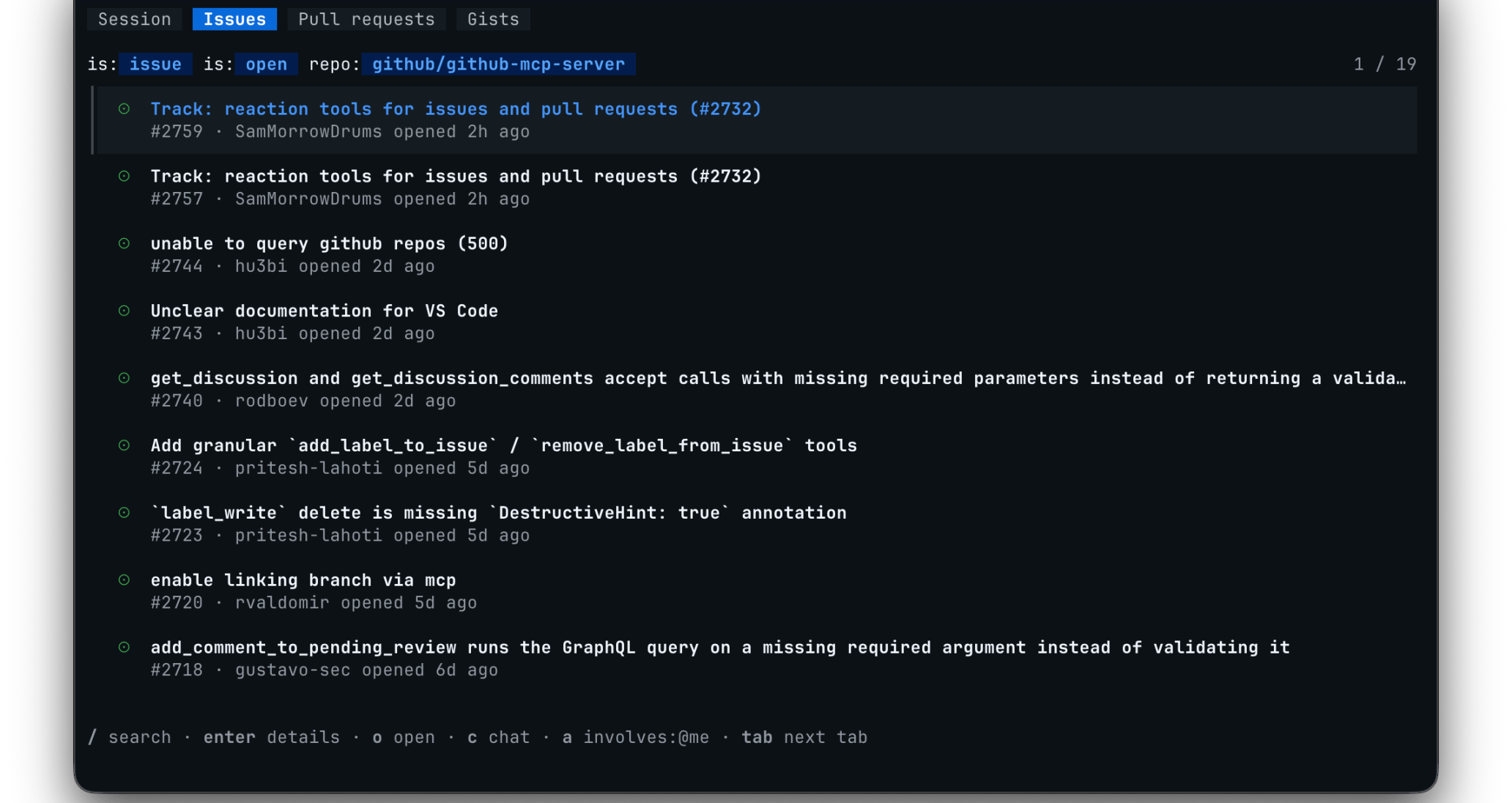
The redesigned terminal interface for GitHub Copilot CLI that we previewed at Microsoft Build 2026 is now generally available. You get a tabbed layout for working with GitHub directly from your terminal, a new experience for configuring your tools, and a cleaner, more accessible interface throughout.
Browse issues, pull requests, and gists in tabs
An interactive Copilot CLI session now has tabs at the top of the screen. Press Tab to move between the default Session tab and a Gists tab for your personal gists. When you run the CLI inside a GitHub repository, you also get Issues and Pull requests tabs for that repository.
This lets you find the work you care about without leaving the terminal. Highlight an issue or pull request and press c to drop a reference to it into your prompt, then ask Copilot to investigate, fix, comment on, or review it. Press o to open the highlighted item on GitHub in your browser, or press / on the Issues or Pull requests tab to search GitHub with your own query.
You can also click a tab with your mouse to switch to it. From your settings, you can reorder, hide, or turn off the tab bar entirely.
For more information, check out our docs about browsing issues, pull requests, and gists.
Configure your tools without leaving the terminal
Setting up the tools that extend Copilot CLI is now a guided, in-session experience. There’s no need to hand-edit configuration files.
- MCP servers: Run
/mcp addto fill out an interactive form or/mcp searchto browse the GitHub MCP Registry and install a server directly. New servers are available immediately, without restarting the CLI. - Skills: Run
/skillsto toggle individual skills on or off with the arrow keys and the space bar. - Plugins: Browse and install plugins from a marketplace, a repository, or a local path with the
/plugincommand. - Settings: Open the
/settingsdialog to view and change your configuration inline.
For more information, check out our docs about how to customize Copilot CLI.
A cleaner, more accessible interface
The new interface uses theme-aware semantic colors and responsive components that adapt to narrow terminals without truncating what you need to read. You can:
- Pick a color mode—such as
default,dim,high-contrast, orcolorblindwith the/themecommand to match your terminal and adjust for your eyes. - Rely on screen reader support that automatically turns on when a screen reader is detected, with labeled icons and animations that disable themselves.
Update and share feedback
Update GitHub Copilot CLI by running copilot update in your terminal. We’d love to hear what you think. Share feedback with the /feedback command in a CLI session or open an issue in our public repository.