Getting more from each token: How Copilot improves context handling and model routing
How GitHub Copilot is making more of each session go toward useful work, so your credits go further.

As Copilot takes on more agentic work, from planning and editing to debugging, reviewing, and calling tools across longer sessions, efficiency means more than using fewer tokens. It means being smarter about how you use them.
Increasing efficiency starts with reducing what Copilot has to repeat from turn to turn, including context, tool definitions, and cached state. It continues with choosing the right model for the job. A quick explanation, a focused edit, and a complex multi-file change should not all be treated the same way.
We are working on both: improving the Copilot harness so more of each session goes toward the task itself, and expanding Auto so Copilot can pick the model that fits the work without asking developers to make that choice every time. This post focuses on harness improvements in GitHub Copilot for VS Code and on ongoing work to expand Auto across Copilot surfaces.
Increased prompt caching and deferred tools
In longer GitHub Copilot sessions in VS Code, the harness prepares a lot of recurring information for the model: instructions, repository context, conversation history, available tools, and the current state of the task. Some of that context is needed. Some of it can be cached, deferred, or loaded only when it becomes relevant.
Two improvements in GitHub Copilot for VS Code are doing most of the work here. Prompt caching helps Copilot reuse model state for repeated prompt prefixes instead of recomputing the same prefix on every request. Tool search lets the model load tool definitions on demand, instead of sending every full tool schema into context on every turn.
That matters more as agents use more tools. A session may need access to MCP tools, terminal commands, file operations, workspace search, and product-specific actions. Loading every full tool definition up front adds fixed cost to each turn, even when only a small number of tools are relevant to the task. With tool search, Copilot can keep the available toolset broad while sending less unnecessary tool schema into the model.
For a deeper technical look at the implementation, including prompt caching, cache-control breakpoints, provider-specific tool search, and how these changes work across long-running agentic sessions, read the VS Code technical deep dive.
Where GitHub Copilot auto model selection fits in
Auto answers a practical question: which model is the best fit for this task right now?
After your first prompt, Copilot uses task intent and current model health to choose a model that best fits the task. Different kinds of work, like quick explanations, focused edits, or multi-file changes, do not all benefit from the same level of reasoning, so Auto makes that call without requiring you to tune model settings.
In our evaluations, no single model consistently performed best across tasks. In many cases, a more efficient model reached the same outcome, while stronger models mattered most when the task required deeper reasoning. Auto learns where stronger reasoning improves the result. It routes up when the task demands it and stays more efficient when it does not. The goal is not to trade quality for cost, but to use the model that best fits the work.
How Auto selects the right model
Auto combines two signals: what model is healthy and available right now, and what kind of work Copilot is being asked to do.
- Real-time model health: a dynamic engine tracks model availability, utilization, speed, error rates, and cost. A model may be capable of handling a task, but that does not mean it is the best choice at that moment. Auto takes current system conditions into account so Copilot can route to a model that is both capable and ready to respond.
- Task-aware routing with HyDRA: a routing model that considers factors like reasoning depth, code complexity, debugging difficulty, and tool orchestration needs. HyDRA identifies models that can meet the quality bar for the task, then chooses the best fit among them.
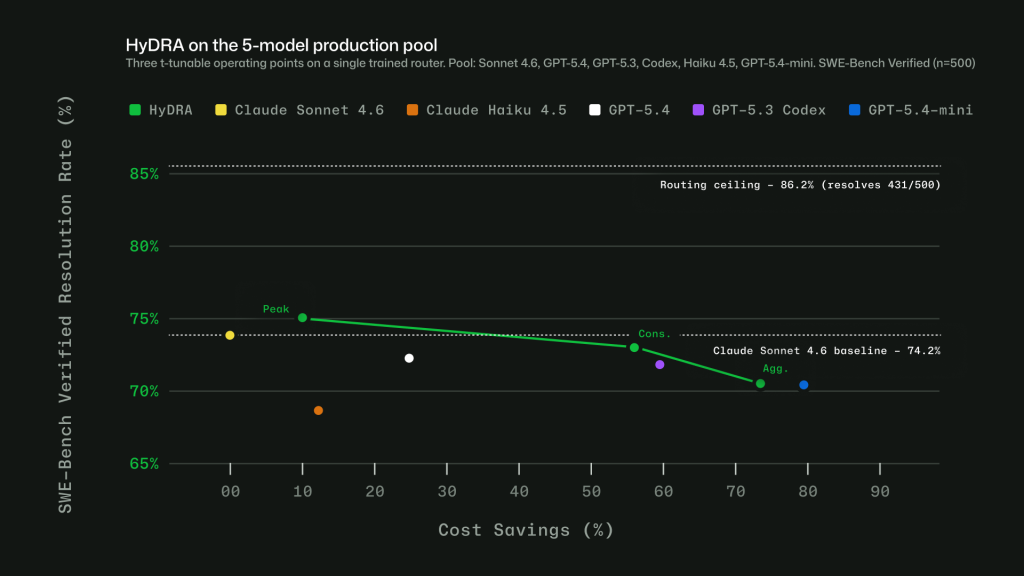
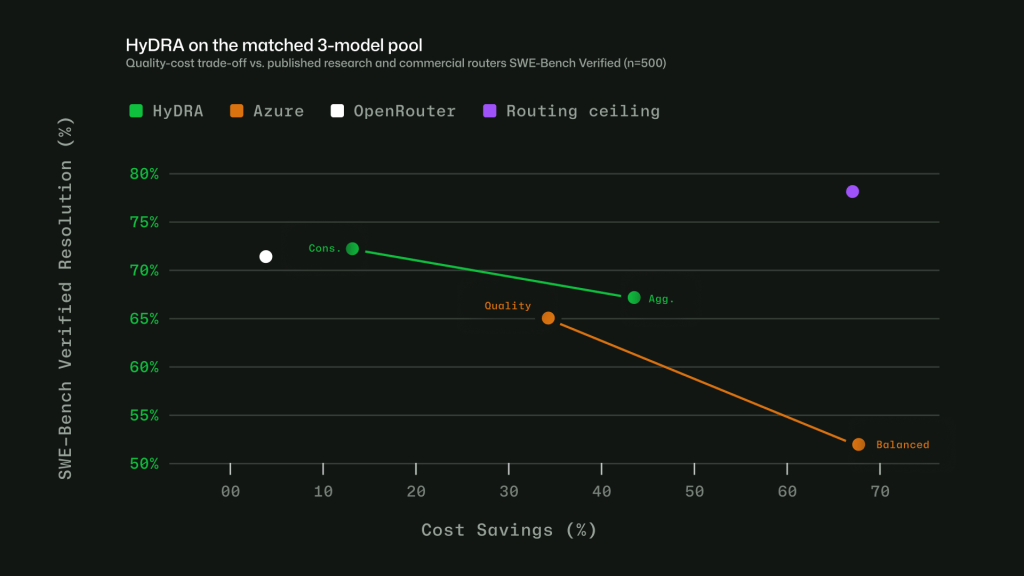
Taken together, these signals let Auto avoid a one-size-fits-all approach. The point is not to send every task to the biggest model, or every task to the cheapest one. It is to choose the model that fits the work.
Making Auto work in practice
Getting routing right in evaluations is only part of the problem. To make Auto useful in real workflows, we also had to account for how developers actually use Copilot: conversations get longer, context builds up, tasks shift, and developers work in many languages.
Cache-aware routing. Switching models on every turn may sound flexible, but it can work against efficiency. When a conversation stays on the same model, the prompt prefix can be cached and reused across turns. Switching models mid-conversation breaks that cache, which can cost more than the routing change saves. Auto avoids that by routing at natural cache boundaries: on the first turn, when there is no cache to lose, and after compaction, when Copilot summarizes older turns and the prompt prefix resets. Between those points, the selected model stays in place so the cache can keep building.
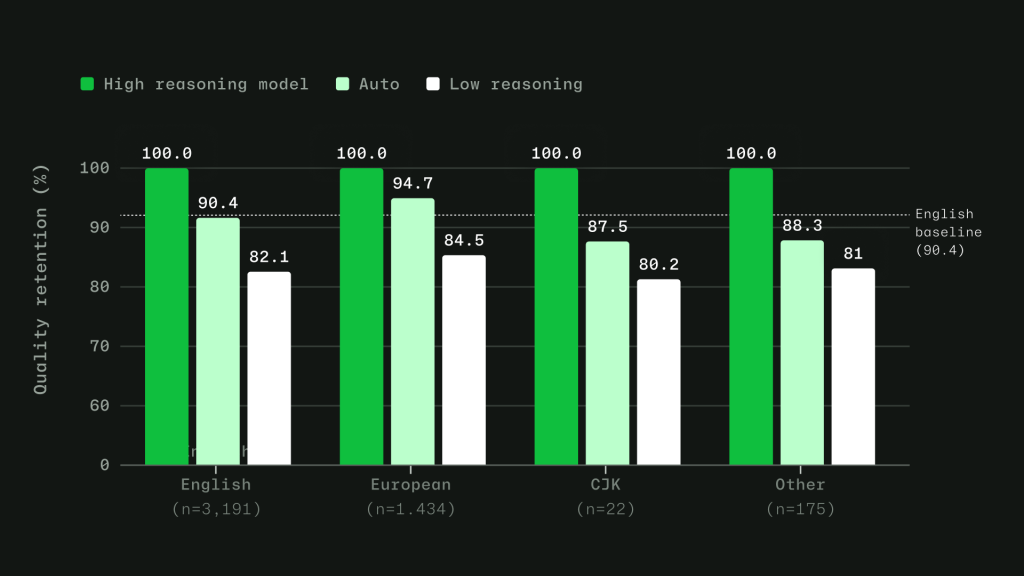
Routing across languages. Copilot serves developers around the world, so routing has to work in languages other than English. We trained the routing model on conversations across 16 language families, including CJK, European, and others. In evaluations, routing accuracy stayed within four points of the English baseline across language groups, with no statistically significant quality gap.
Learning when escalation matters. Instead of labeling tasks as simply “easy” or “hard,” we trained the router to learn where models actually diverge. For each training query, responses from a less capable model and a more capable model are scored across quality dimensions. The router learns when the stronger model adds value, and when a more efficient model can produce an equally good result. For context-dependent messages in longer agentic sessions, the router is trained on complete multi-turn conversations, including the original user intent, recent assistant responses, and conversation metadata.
Auto with task intent is expanding
Auto with task intent is already live in Visual Studio Code, github.com, and mobile. It gives Copilot more signal about the kind of work you are doing, whether that is coding, debugging, planning, or using tools, so it can make a better model choice for the task.
We are continuing to expand that experience across Copilot. Next, we are bringing Auto with task intent to more surfaces and adding more ways for teams to make Auto the default.
- Auto with task intent is coming to Copilot CLI, GitHub App, and additional IDEs.
- Copilot Free and Student plans will be simplified to leverage Auto as the only model selection option.
- Admin controls will let organizations set Auto as the default or enforce Auto as the only option.
Getting more value from your AI credits
Copilot is getting more efficient by default, but a few habits can help your credits go further.
- Start with Auto. Auto is the strong default for many tasks because it chooses a model based on what you are trying to do, without making you pick one manually every time.
- Keep context focused. Start a new session when you switch tasks, compact long-running sessions when needed, and mention the files you want Copilot to use when you already know where the relevant code lives. Less unnecessary context means more of the session goes toward the actual work.
- Avoid changing models or settings mid-session. Switching models, reasoning levels, context size, or tool configuration can break cache reuse and make Copilot rebuild context. Set up the session the way you want it, then keep related work together.
- Plan before parallelizing. For larger tasks, ask Copilot to plan first. Parallel agents can be useful when work can truly be split up, but they also consume credits in parallel, so use them deliberately.
- Use only the tools you need. Tools and MCP servers are powerful, but broad toolsets can add extra context. Enable what is relevant to the task and turn off what you do not need. Check out agent finder in GitHub Copilot to help streamline your tool usage.
- Check your usage. Your AI usage page shows where credits are going across features and models. In Copilot CLI, session-level usage can also help you spot expensive patterns while you work.
For the full guide, see How to get more out of your AI credits.
Get started
Auto model selection is available today across supported Copilot experiences. To learn more, see the Auto model selection docs. You can also share feedback in Copilot discussions.
We are continuing to make Copilot more efficient across the system so more of your credits go toward useful work, without requiring you to tune every model choice yourself.
This post contains contributions from Nhu Do and Aashna Garg.
Tags:
Written by

Related posts

How 3 Java Champions are using GitHub Copilot for increased productivity
Three Java Champions share how they use GitHub Copilot to solve problems, accelerate development, and keep humans responsible for the results.

How to continue a GitHub Copilot app session in VS Code
Learn how to move an agent session from the GitHub Copilot app into VS Code without losing the conversation, code changes, or working context.

GitHub’s model for secret detection: Finding more secrets with less noise
GitHub’s context-aware secret classifier improves detection quality, raises weighted acceptance by 11.5%, and reduces median scan execution time by 86%.